Getting started
Your first personal message, step by step
From sign-up to a message tucked in with the gift in about five minutes. No app for anyone and no new hardware: just your Qreet dashboard and a printer.
Before you start
Confirm your email
Right after you sign up, we email you a link from cards@qreet.io. Click it to confirm your email: it also signs you in to your dashboard. Until then, your account isn’t fully set up.
Can’t find it? Check your spam or Promotions folder. Or go to qreet.io/login, enter the email you signed up with and use the new sign-in link: that confirms your email too.
Create a message card
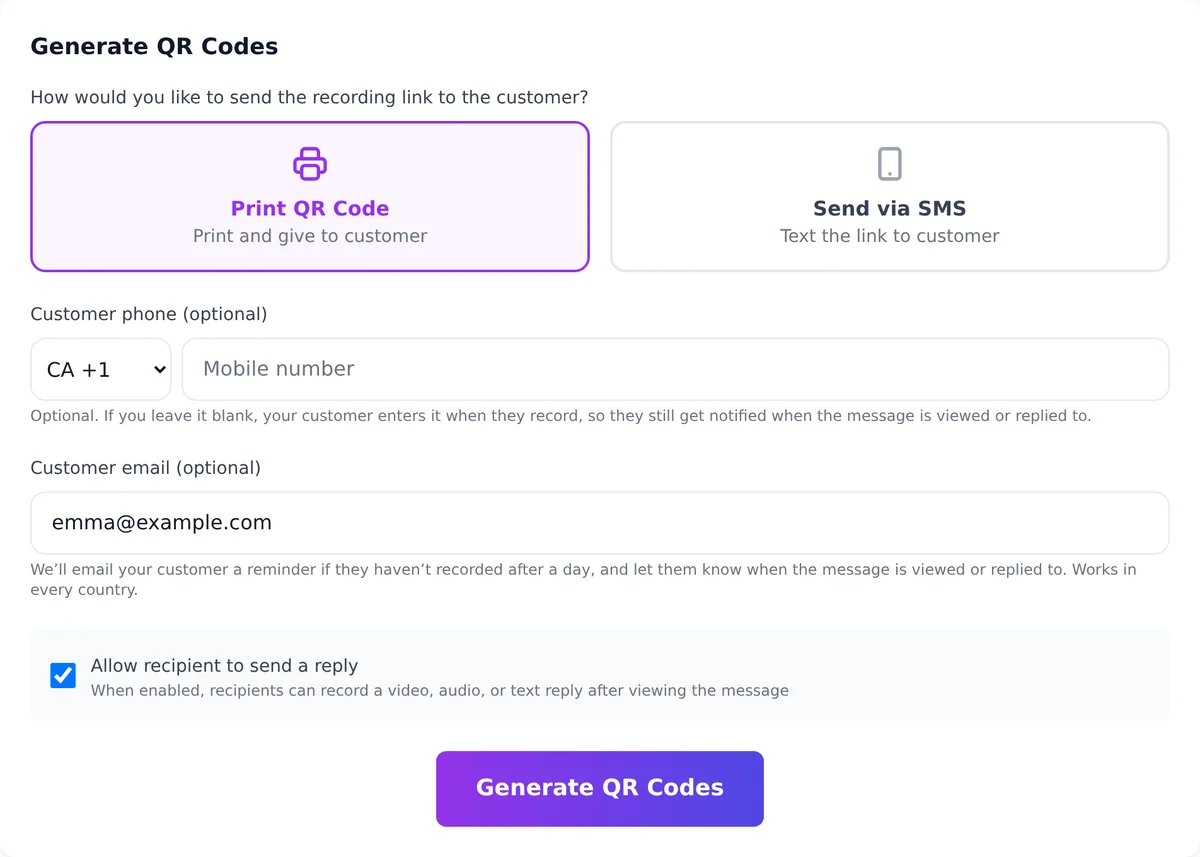
In your dashboard, go to Generate QR Codes and choose how your customer gets the recording link:
- Print QR Code: for walk-in and phone orders, or when you’ll send the link yourself. Works in every country.
- Send via SMS: we text the link to your customer’s phone (in countries where texting is available).
Adding your customer’s phone or email is optional but worth it: we’ll remind them if they haven’t recorded after a day, and let them know when the message is viewed or replied to.
Then click Generate QR Codes. Each card uses one message credit.
Send your customer the recording link
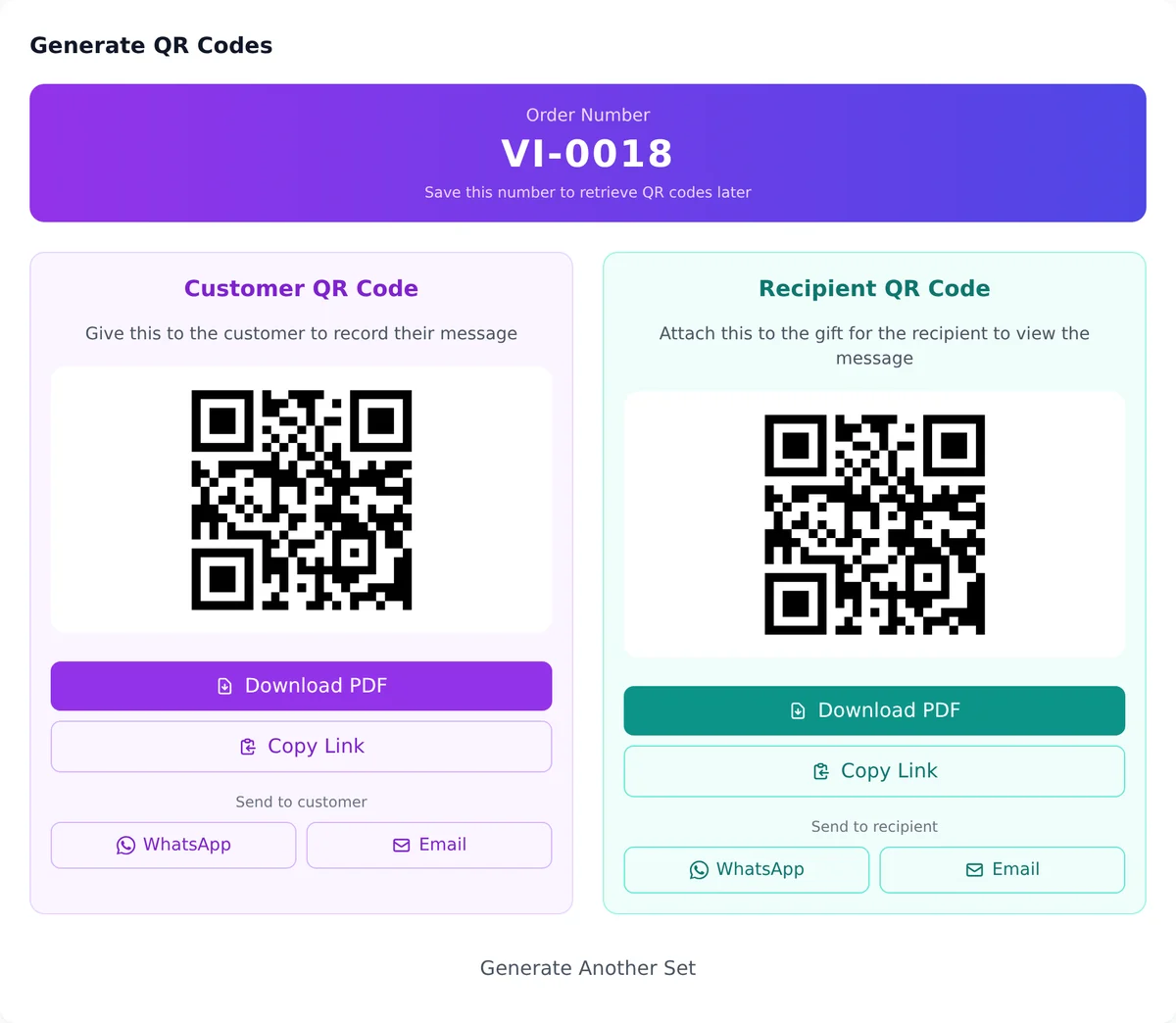
You get two codes for each order:
- Customer QR code (purple): the recording link. Hand your customer the printed code, or send it with WhatsApp, Email or Copy Link.
- Recipient QR code (green): the card that goes with the gift. Click Download PDF and keep it for step 4.
Note the order number. You can find every card again later under History, to reprint it or resend the link.
Your customer records their message
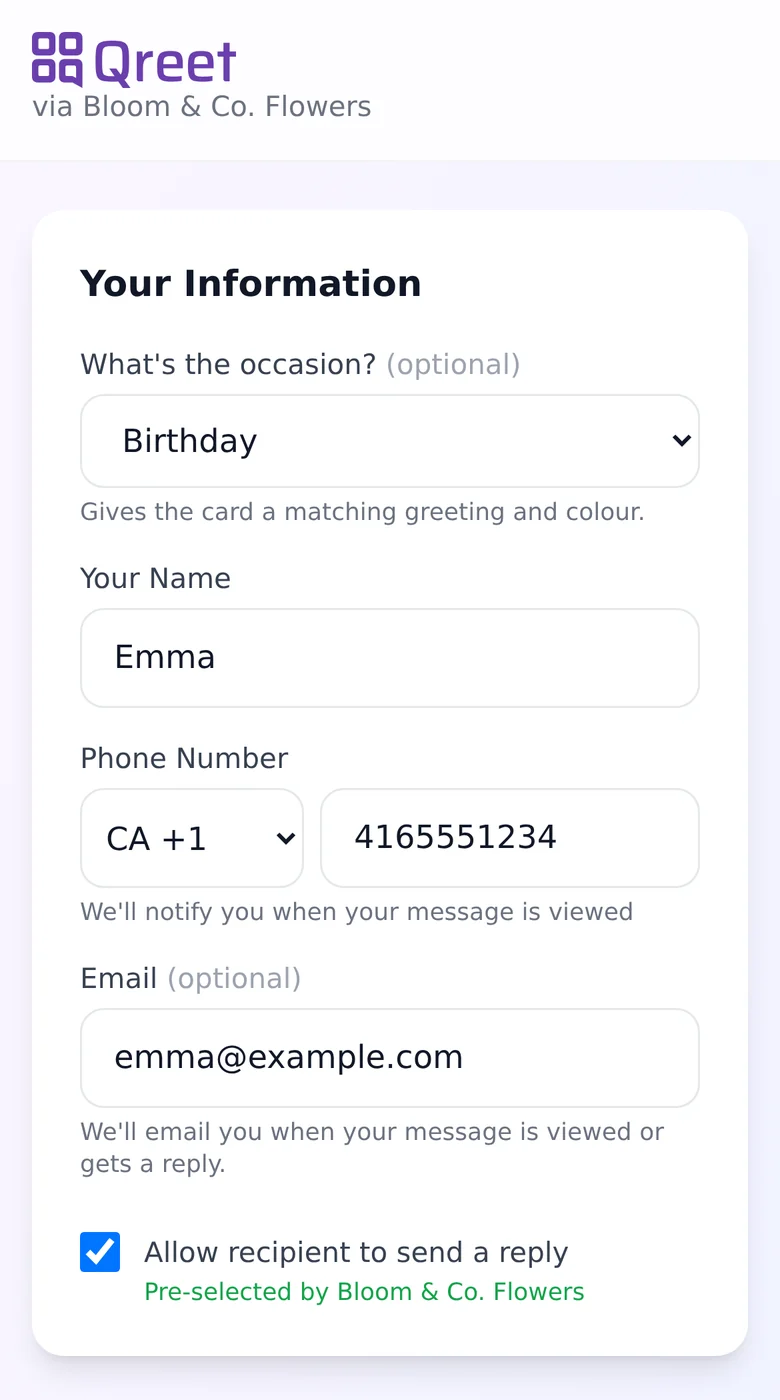
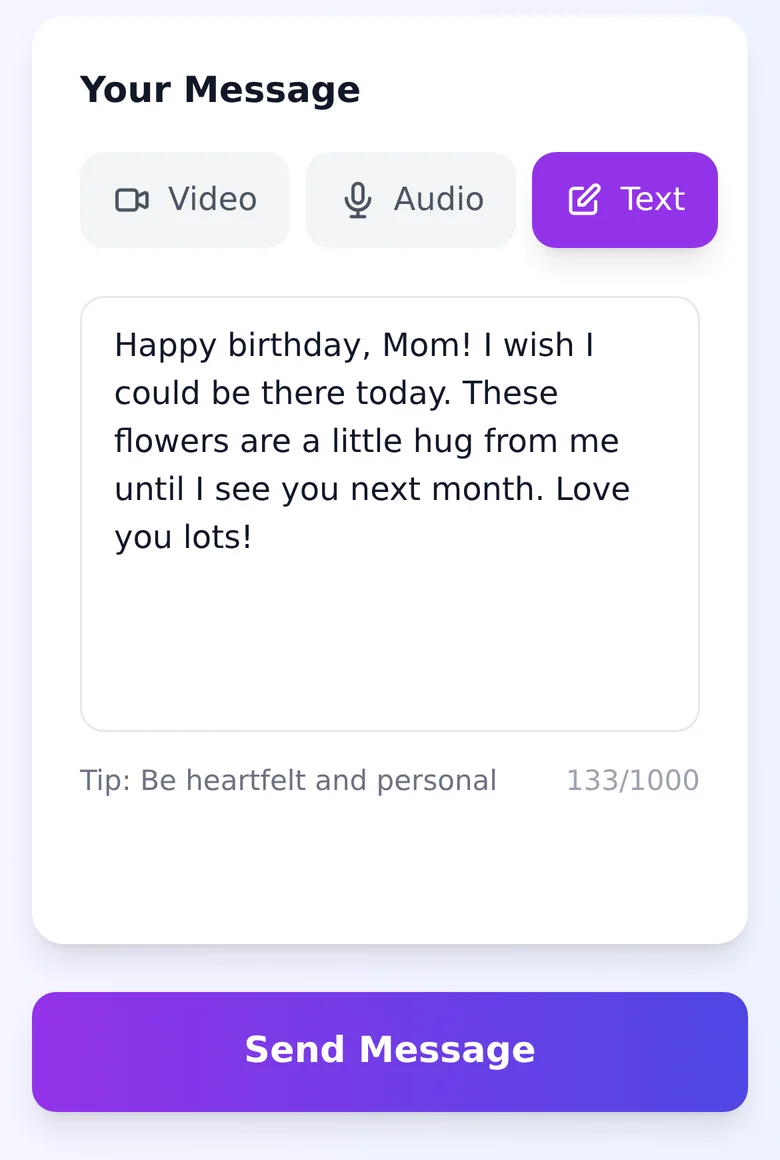
Your customer opens the link on their phone, with no app and no account. They add their name, pick the occasion and record a video, a voice message or a written note.
They can preview and re-record until it’s right. If they’re stuck for words, an AI helper suggests what to say.
If they haven’t recorded after a day and you added their phone or email, we send them a friendly reminder. You don’t have to chase them.
Print the card and tuck it in with the gift
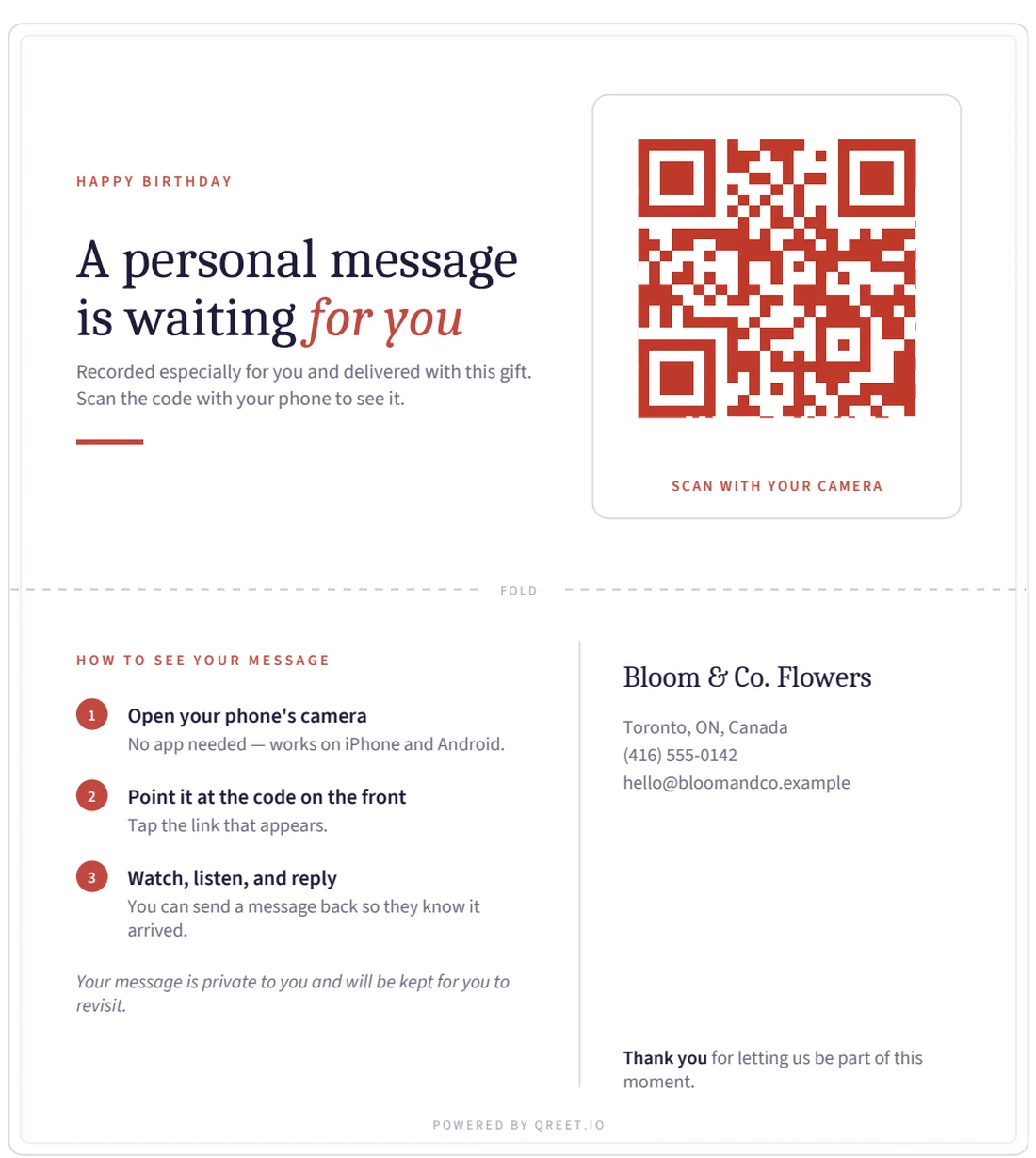
Print the recipient PDF on any printer, cut along the dashed line and fold it in half. It shows the occasion, a QR code and simple instructions, with your shop’s name and contact details on the back.
You don’t have to wait for the recording: the card works as soon as it’s printed. If someone scans it before the message is ready, it appears as soon as your customer records it.
The recipient scans and watches
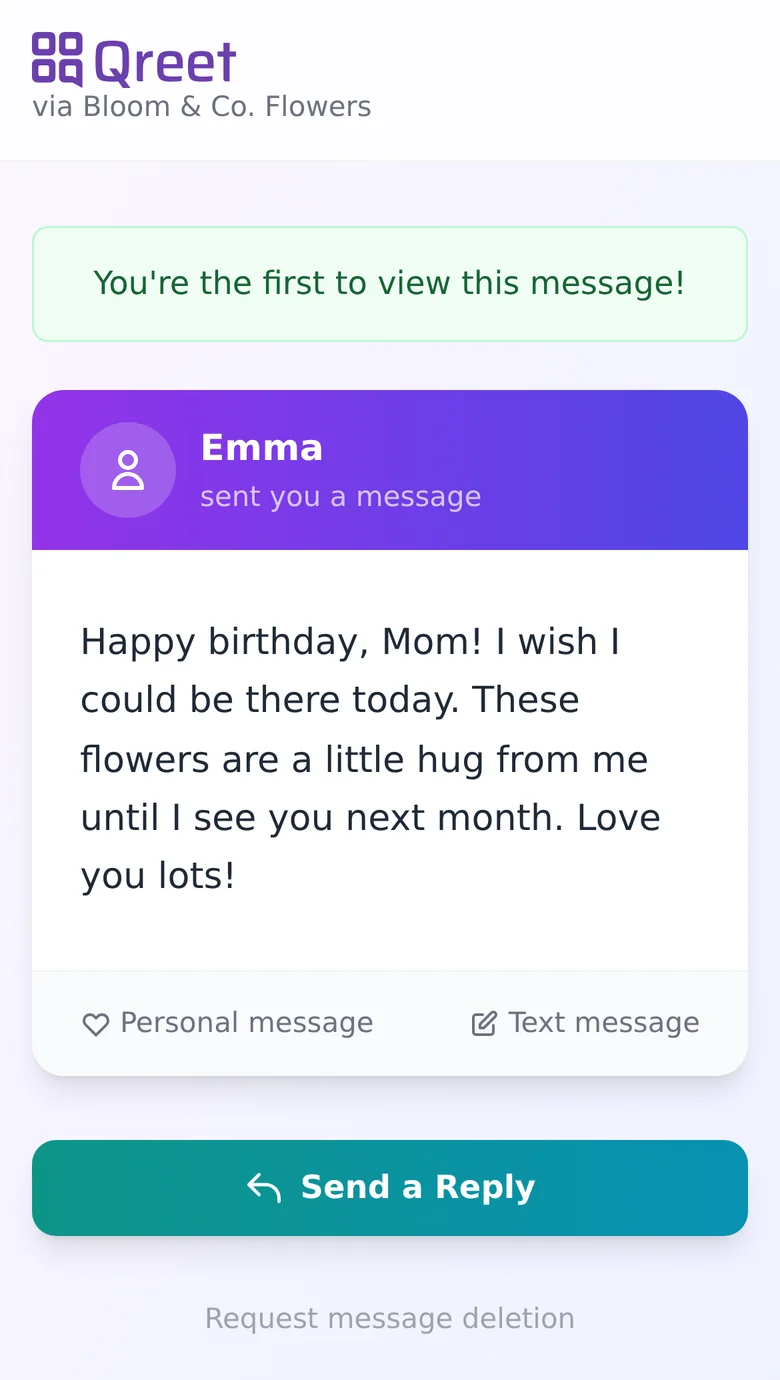
The recipient points their phone camera at the card and the message opens in the browser. It works on iPhone and Android, with nothing to install.
They can send a reply (video, voice or text) if you allowed replies, and your customer is notified when the message is viewed and when a reply arrives. You can follow each card’s status in your dashboard.
Selling online?
WooCommerce stores: it’s automatic
On Shopify, Etsy, Wix or another platform? Use the dashboard steps above: no plugin needed. Make a card for each order that includes a message.
- 1
Install the free Qreet for WooCommerce plugin from your WordPress admin (Plugins → Add New → search “Qreet”).
- 2
Paste your API key under WooCommerce → Settings → Qreet and click Verify & Connect. The key is in your welcome email, or create a new one under API Keys in your Qreet dashboard.
- 3
Shoppers can now add a personal message on your product, cart and checkout pages. The buyer gets the recording link in their order confirmation email, and Qreet emails you the printable card for each order.
Good to know
- What it costs
- Every account gets 5 free message credits each month, with no credit card. One card uses one credit, and you can top up any time. Credits you buy never expire.
- What to charge
- That's up to you. Many shops add it as a small paid extra, others include it free as a thank-you. You keep 100% of what your customers pay.
- How long messages last
- Once recorded, a message waits up to 30 days for the recipient to open it, so shipped gifts arrive in time. After the first view they can replay it free for 7 days, and choose Keep to save it longer. A card that's never recorded expires after 30 days.
- Try it yourself first
- Make a card for yourself, record a short message on your phone and scan the printed card. It takes two minutes and shows you exactly what your customers will see.
Need a hand?
Email hello@qreet.io. A real person replies, and we’re happy to help you set up your first card.